
Data labeling
Data labeling is a JAICP tool you can use to extract message subjects from the loaded data to which the bot will respond.
Go to the project > click CAILA > Data labeling in the dashboard to use data labeling.
Data labeling algorithm:
Prepare data
You need to prepare your data file before data labeling.
For example, it can be a file with phrases the classifier failed to associate with any of the intents at the required level of confidence.
Input file format:
UTF-8text file.- Each phrase is on a separate line.
Please note that the file length may not exceed 10,000 lines.
Load data
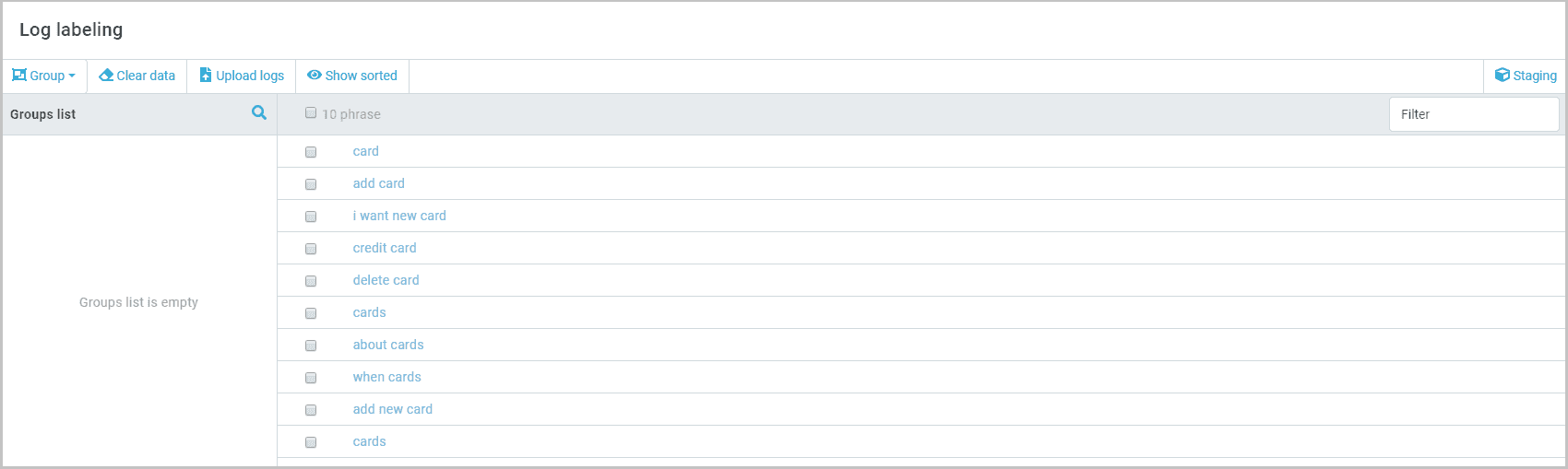
Click Upload logs in the window upper pane > drag and drop or select the file you have prepared in order to load it. The number of phrases loaded is displayed under the upper panel.
Refine data
In this step, we remove “garbage” from our data, such as special symbols, stop words, duplicates, etc.
Click Clear data in the window upper pane. Select the parameters you wish to use to refine your data:
- Remove symbols — all the symbols except alphanumeric characters are removed. All the phrases are modified, and this operation cannot be undone.
- Delete short lines less than — all the strings shorter than the specified number of characters are removed.
- Delete long lines longer than — all the strings longer than the specified number of characters are removed.
- Correct typos — typos are corrected in all the phrases. You can specify spellchecker options in the Extended NLU settings section of the project options. All the phrases are modified, and this operation cannot be undone.
- Delete stop-words — stop words are removed. The dictionary of stop words is built into the platform. All the phrases are modified, and this operation cannot be undone.
- Replace entities — all entity values are replaces with corresponding names. The values of active system and custom entities are replaces. All the phrases are modified, and this operation cannot be undone.
- Remove duplicates — all phrase duplicates are removed. A single unique value for each entity is left after this operation.
Click Clear.
You can click Show sorted in the window upper pane to view the phrases that have been removed. The phrases removed are at the bottom of the list and have the
 icon.
icon.
Group phrases
You can assign a phrase to an intent without grouping. Select your phrase(s) > Select intent > select an existing or create a new intent > Add.
Please note that the phrases added to the intents are saved at the Staging step.
You will find all your phrase grouping operations in the History of operations field. Click the name of the required group to go to it. All the groups based on the criteria you select are displayed in the Groups list field.
Possible grouping criteria:
Duplicates
The operation combines the duplicates into a single group.
Click Grouping > Duplicates in the window upper pane to create a group. Select Duplicates in the operation history.
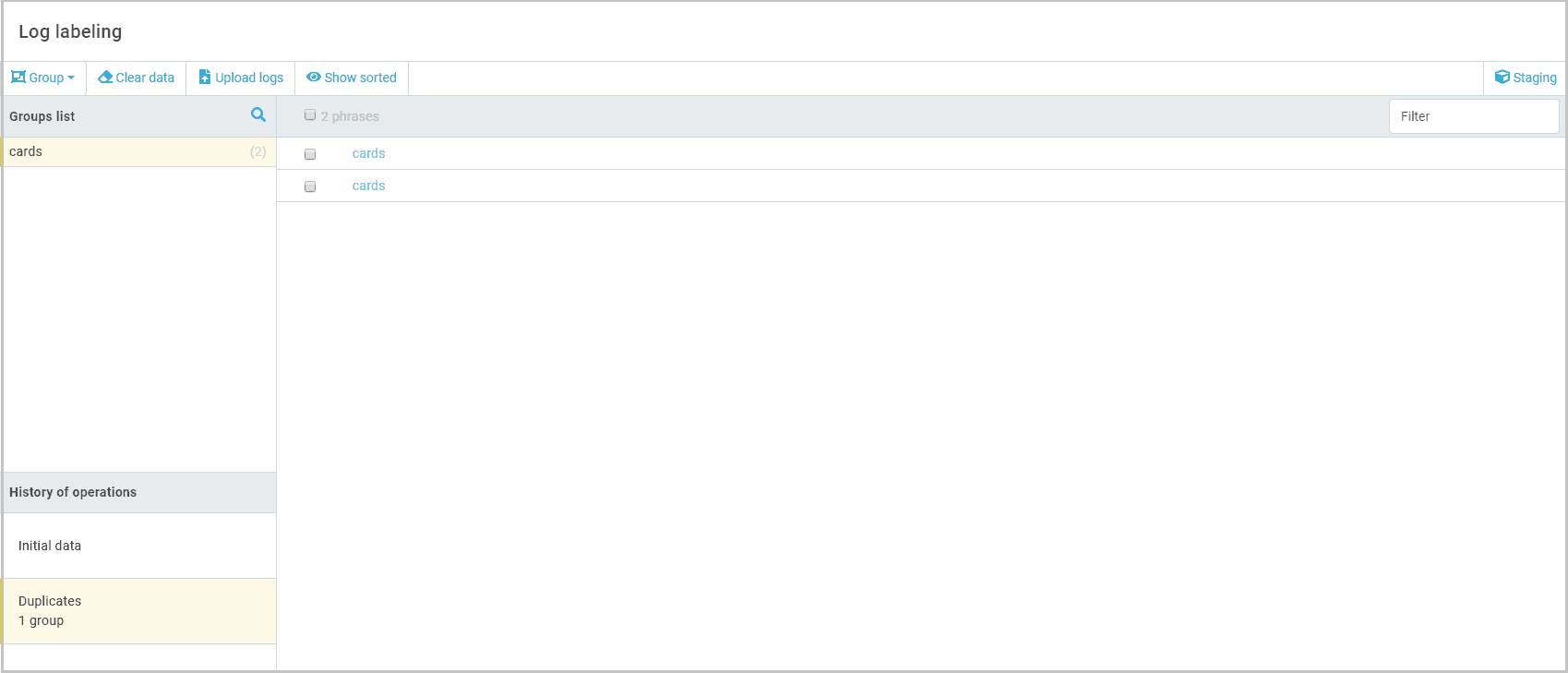
Here you can assign an intent to your group. Select a phrase > Select intent > select an existing or create a new intent > Add.
Please note that the phrases added to the intents are saved at the Staging step.
Keywords
Select the keyword extraction method and fill in the fields.
TF/IDF
Fill in the fields for the method:
- Cast to lowercase — all the words will be converted to lowercase.
- Maximum N-gram length — the number of words to be combined into word combinations.
- Maximum skip-gram number — defines how
skip-n-grams(word combinations with skipped words) are created.
For example, you can get 5 1-skip-2-grams for the words one two three four:
one two
one three
two three
two four
three four- Minimum unigram frequency — the minimum frequency of a unigram in the corpus after which the unigram is taken for analysis. The value of 6~7 is recommended for smaller datasets or 7+ for larger ones.
- Minimum N-gram frequency — the minimum frequency of an N-gram in the corpus after which the N-gram is taken for analysis. The value of 2~4 is recommended for smaller datasets or 5+ for larger ones.
- Maximum number of N-grams from a phrase — you can limit the number of word combinations that can be extracted from a phrase. The recommended value is 2-5 (6-7 for longer phrases).
UDPipe
Fill in the fields for the method:
- Cast to lowercase — all the words will be converted to lowercase.
- Language — select the language of the phrases to be labeled.
- Keep verb head only — only word combinations containing the predicate will be extracted from the phrase.
- Lemmatize — each word will be replaces with its normalized form.
Select the method name in the operation history to go to the keyword grouping results. Here you can assign an intent to your group. Select your phrase(s) > Select intent > select an existing or create a new intent > Add.
Please note that the phrases added to the intents are saved at the Staging step.
Intents
The Intents grouping method can be used to match the phrases you have added and the intents active in the project.
Each phrase is assigned the numeric value of confidence during grouping. The confidence parameter is the level of confidence of the JAICP platform that the specified phrase belongs to a certain intent.
Click Grouping > Intents in the window upper pane to create a group. Select Intents in the operation history.
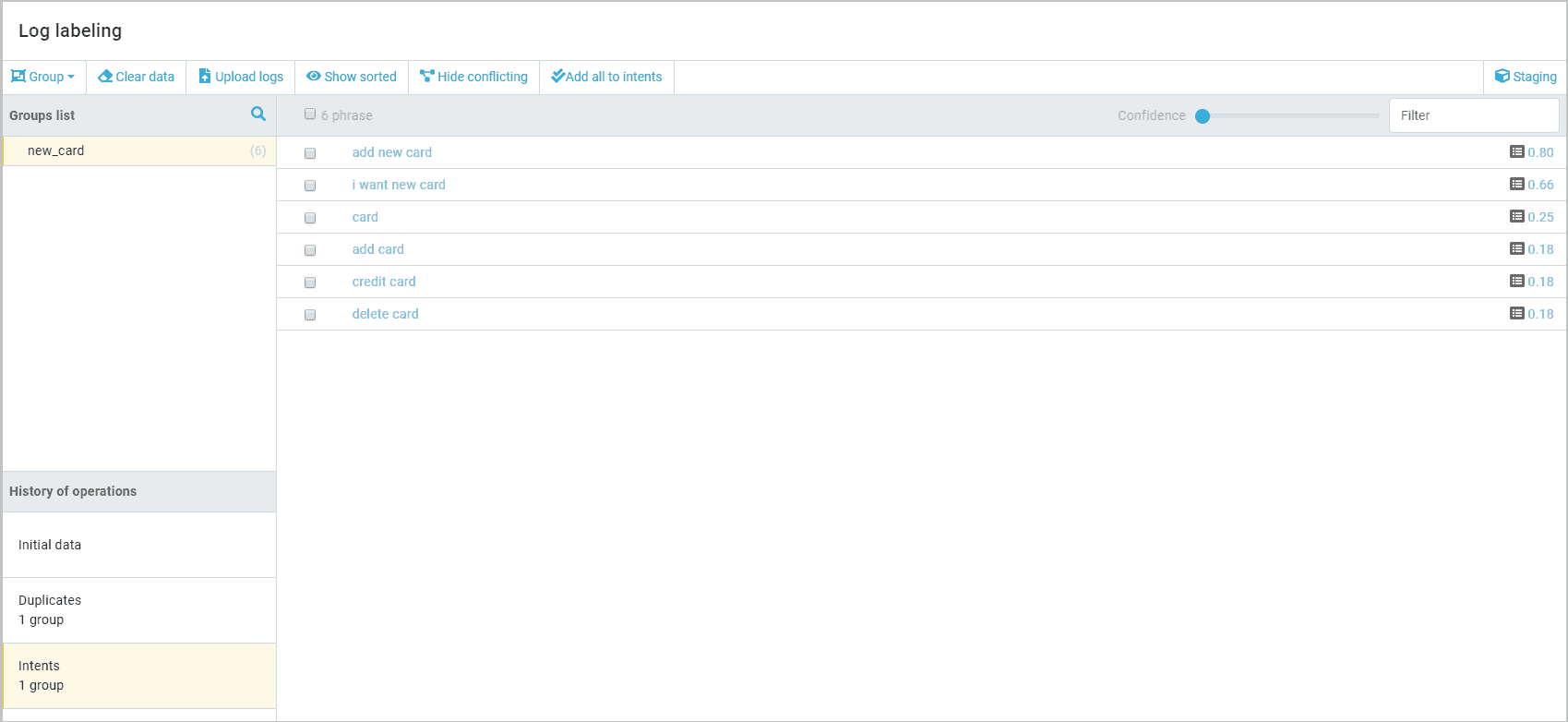
You can adjust the display of phrases by the confidence level by dragging the Confidence slider in the window upper pane.
Click Hide conflicting to hide the phrases assigned to multiple active intents.
Here you can assign an intent to your group. Select your phrase(s) > Select intent > select an existing or create a new intent > Add.
Click Add all to intents to add all the phrases to corresponding intents.
Please note that the phrases added to the intents are saved at the Staging step.
Clusters
Clustering is classification without known classes. It finds similar objects and groups them into clusters. You can specify the number of clusters manually or let the algorithm decide for you.
Select the clustering method and fill in the fields.
K-Means
Fill in the fields for the method:
- Language — select the language of the phrases to be labeled.
- Number of clusters — specify the number of clusters to group phrases in.
Linkage
- Language — select the language of the phrases to be labeled.
- Threshold value — the hierarchical clustering parameter defining the maximum allowed distance between clusters.
- Number of phrases for clustering — the number of lines from the current file to be taken for processing. This parameter is used when the original log array is massive and its processing would require a lot of time.
Select the method name in the operation history to go to the cluster grouping results. Here you can assign an intent to your group. Select your phrase(s) > Select intent > select an existing or create a new intent > Add.
Please note that the phrases added to the intents are saved at the Staging step.
Staging
Click Staging in the window upper pane. Here you can find all the phrases added to intents at the previous stages.

Click Save to intents to save the added phrases to intents.