
Entities
An entity is a unit of the NLU core of CAILA. An entity is a sequence of words linked by an intent or rule. For example: names, date and time, location, etc.
More about working with entities in a script
Custom entities
Custom entities are entities that the developer enters and constructs in the entity editor.
Open the project, click CAILA > Entities in the dashboard. You have navigated to the project entities dictionary.
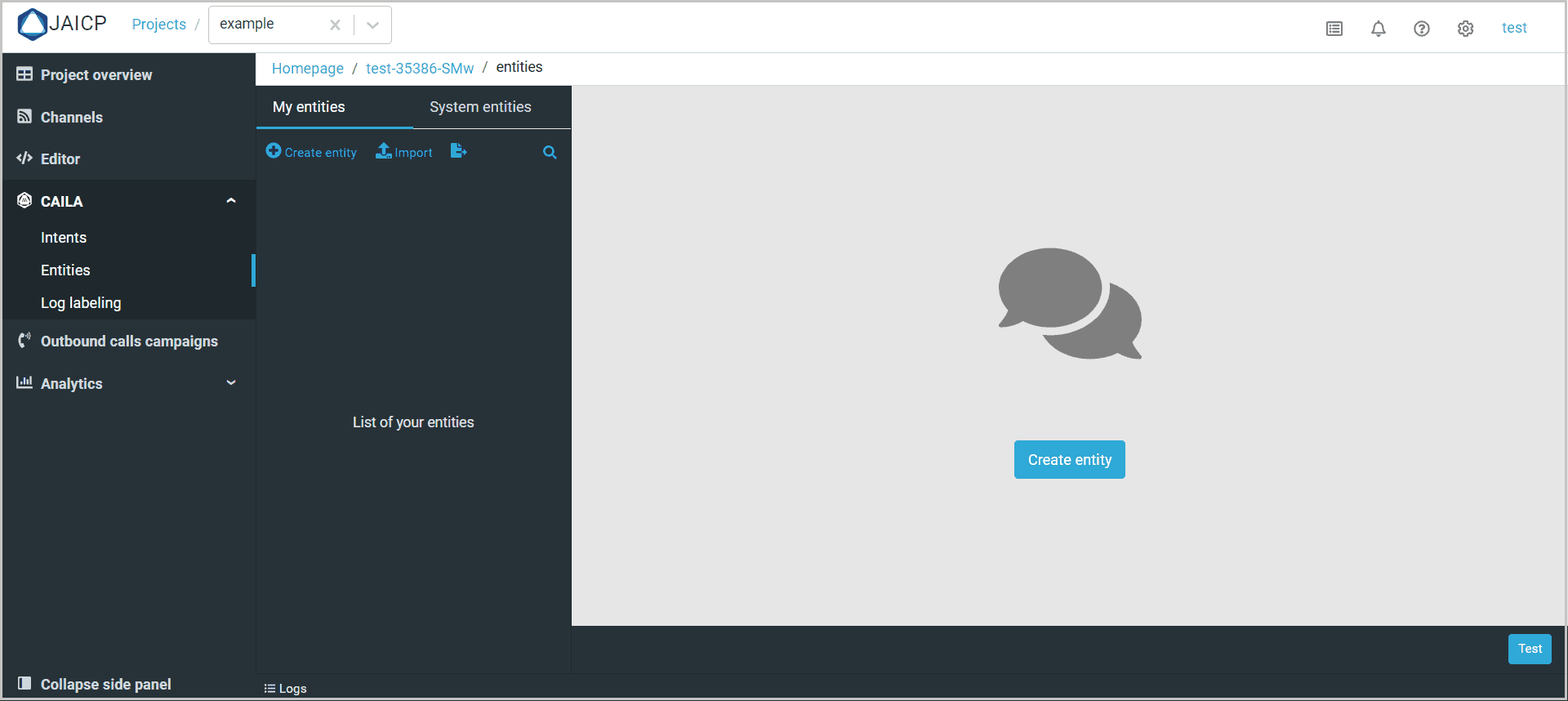
Setting up an entity
Click Create entity > specify the entity name.
Recognized
Click the recognized button above the entity name to have the entity recognized in the chat. Click this button again to disable recognition.
Let us have a look at how the script works with different settings:
| State | Behavior |
|---|---|
| Enabled | Entity is recognized in the conversation. The intent referring the entity will be triggered, the slot will be filled, metadata for that entity will appear in the script. |
| Disabled | Entity is not recognized in the conversation. The intent referring the entity will not be triggered, the slot will not be filled, metadata for that entity will not appear in the script. |
Client
Click client under the entity name to make its value unique for each client. Click this button again to enable this function.
Let us have a look at how the script works with different settings:
| State | Behavior |
|---|---|
| Enabled | Entity values and metadata are unique for each bot client. Data obtained from clients are filled in via the API or in the chat. |
| Disabled | Entity values and metadata are specified by the bot developer and are common for all the clients of the bot. |
Learn more about using client entities
Spelling correction
The Spelling corretion feature can be used to correct spelling errors in client requests. If this feature is enabled, possible spelling errors are taken into consideration when entities are being recognized.
Please note that this function is only available for Russian language projects.
Let us have a look at how the script works with different settings:
| Setup | Behavior |
|---|---|
| Correct spelling errors | Entities will be recognized after the system corrects spelling errors using the client dictionary. |
| Do not correct spelling errors | Entities will be recognized in the original phrase without correcting spelling errors regardless of project settings. |
Additional settings
| Setup | Behavior |
|---|---|
| Use fuzzy/substring search | Enables recognition of entities will possible insertion of other words, as well as substring search. |
| Normalize | When this setting is enabled, all the words will be normalized before entity recognition is started. Lemmatization is not supported for projects in Chinese and Portuguese. |
| Automatically expand intents | When this setting is enabled, the weight for the intent will be increased if the entity is found both in the intent and in the client phrase. When this setting is enabled, the entity will also be added to advanced NLU settings as allowedPatterns. Please note that this setting is only available for the STS classifier. |
Dictionary
An entity is defined via a set of values that it can take on. In the dictionary window click Add record. Select one of the methods for specifying the values:
- Synonyms – specify the set of synonyms: all the spelling variants which will be equivalent to this value.
- Pattern – specify the pattern: a formal rule that describes key words and expressions. Use the basic pattern elements.
You can also specify DATA (name of the entity in the string or JSON format) as additional reference data.
Import dictionary
You can also load an existing set of values for an entity. Click Import dictionary > select .csv.
File line structure:
id; name; valueFor example:
149;John, Jack;{"name": "John", "sex": "male"}
150;Tom;{"name": "Tom", "sex": "male"}
Parameters passed in {} will be transfered as DATA.
System entities
System entities are built-in entities that the developer can activate in the entity editor.
You can activate the recognition of system entities. Open a project and click Editor > Entities > System entities in the toolbar.
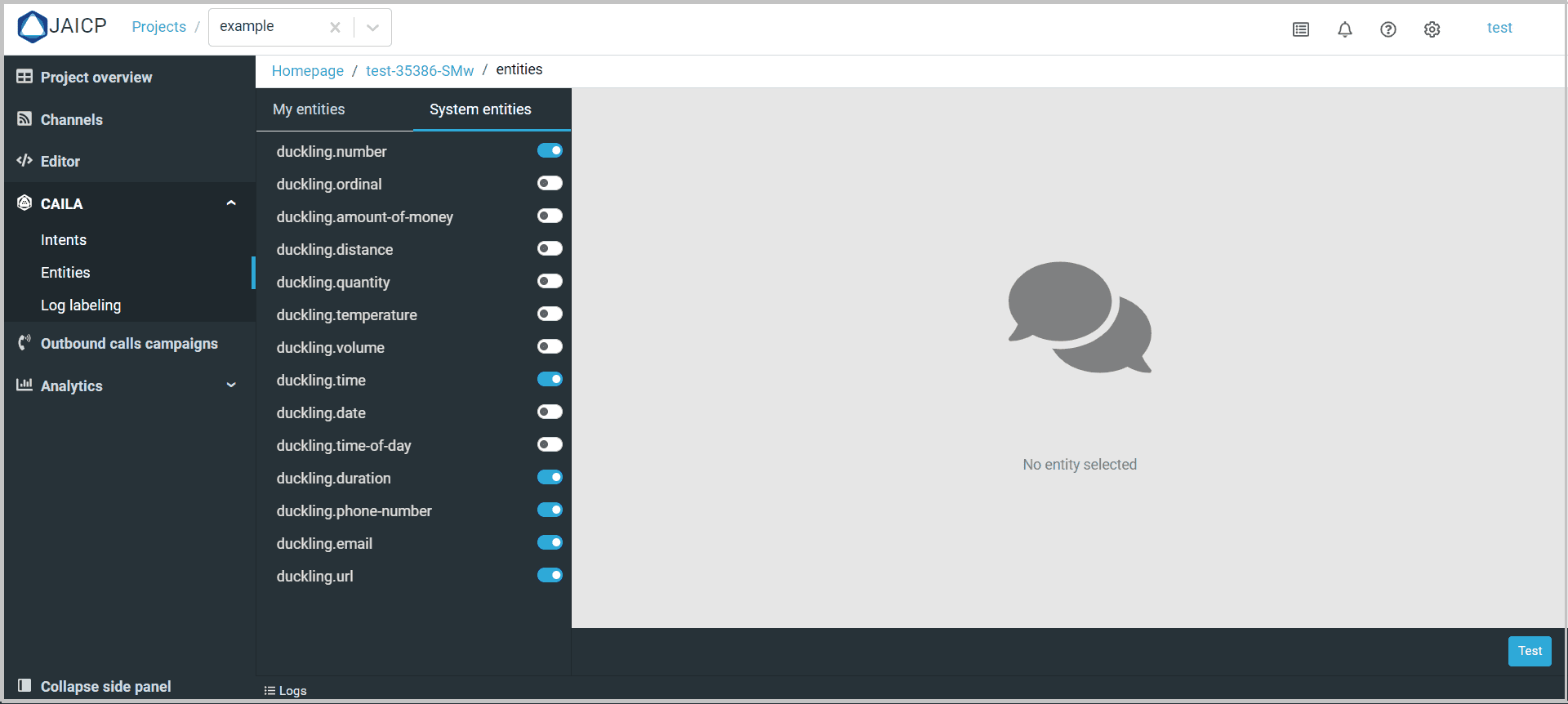
Click the entity name to view its description and recognized formats.
To activate a system entity enable the checkbox next to its name. As soon as the status is changed, the platform will start recognizing this entity in the messages sent to the chat bot.