
Call details
To view detailed call logs for all calls, open Analytics > Dialogs. Here you can review the voice broadcasting process and client responses.
More about working with dialog logs
You can also navigate to dialog details from the voice broadcast analytics. For example, you can navigate to detailed logs for a specific analytics tag and play back only the recordings that you want.
With the search block, you can filter outcomes by parameters:
- Campaign ID — filters dialogs by the specified voice broadcast ID.
- Call results — select one or more call outcomes.
- Show — choose to show only incoming or outgoing calls.
- Show calls without outcome— filters calls by the presence of an outcome.
Call recording playback
Call recording will only be available if the Record calls parameter has been enabled for the telephone channel. You can delete audio recordings from the platform after a specified time.
To listen to the call, go to Analytics > Dialogs > tap on the selected dialog from the list.
At the top of the page is a player with the full record of the bot-to-client dialogue: listen to or download the record.

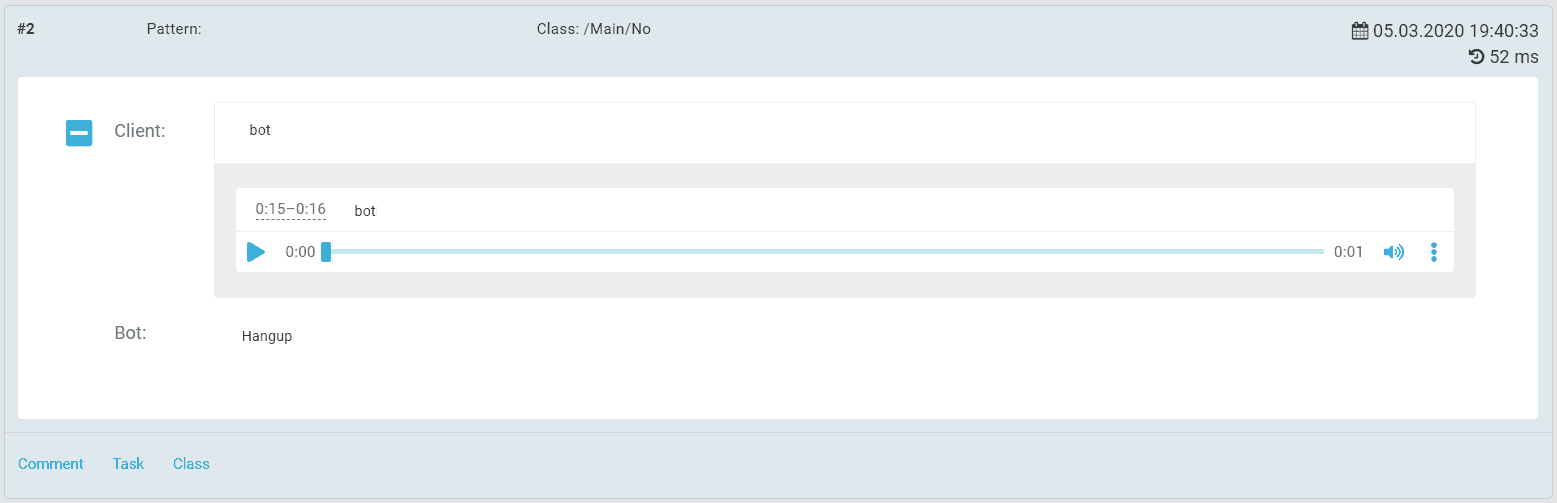
For each recognized client phrase, an audio recording, a text representation of the phrase, and a bot response are also provided.
To view meta-information about the call made, click the
 > Metadata.
Note that for one pair of client-bot phrases, several audio recordings may be provided.